First time here
Get started in 6 steps
Unsame does not write your social media posts. Your own AI does. Before it writes, it asks Unsame how to approach this one, and Unsame answers with a short instruction called a protocol. These steps take you from sign-up to your first post. You need an AI app that can connect to outside tools, such as Claude.
Step 1 of 6
Sign up free
Enter your email and open the link we send you. There is no password and no card.
The free plan gives you 100 credits a month. A credit pays for one protocol: the short instruction Unsame hands your AI each time it asks how to approach a piece of writing. Each protocol Unsame returns is also called a draw. Credits come back every month and unused ones do not roll over.
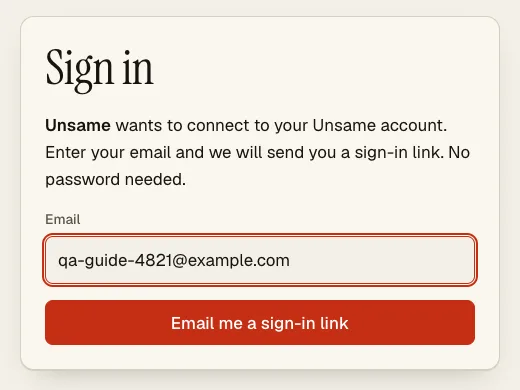
The sign-in form. You receive one link by email; opening it signs you in. Step 2 of 6
Pick a template
In the app, open Templates and press “Use this template” on the one closest to what you write, for example “Threads posts”. Keep the suggested name and press “Create goal and open test run”. This creates your first goal: one kind of writing you repeat. It holds a playbook, which is the list of approaches your AI can choose from, plus your voice and your rules. Starting from a template is free.
If no template fits, press “New goal” on the Goals page and choose “Describe it, AI asks and drafts it”. Describe your writing and, if you have one, add your site link. The AI asks a few questions (free) and can look up pages of your site (1 credit per page), then you review its summary and create the goal. Drafting and checking the playbook can take several minutes and costs 10 credits.
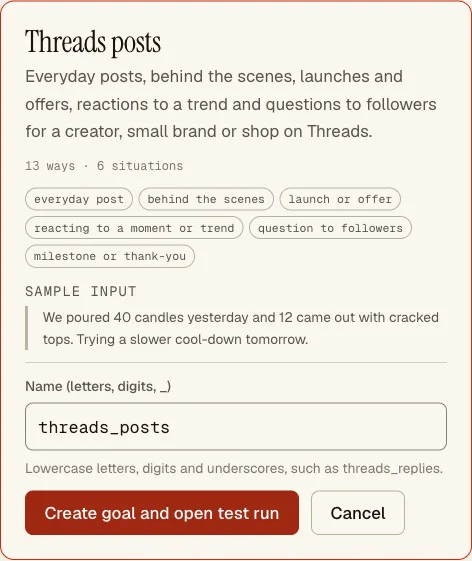
The “Threads posts” template after pressing “Use this template”. A sample input shows what it is built for. 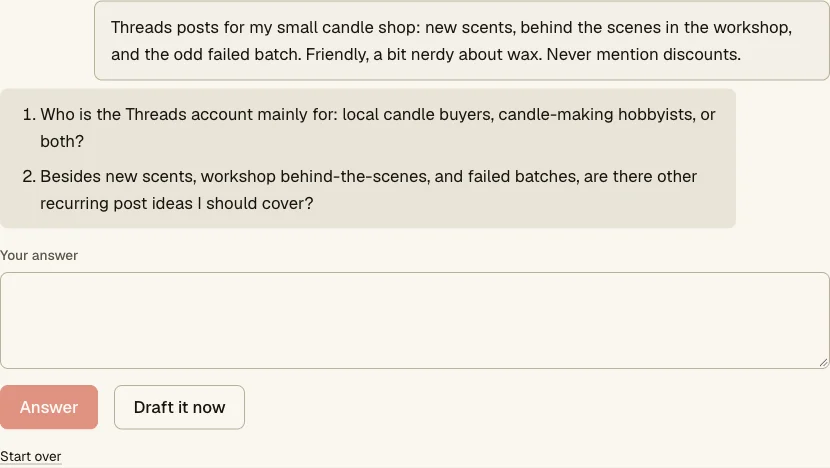
Without a fitting template, the AI asks a few questions first. “Draft it now” skips the rest and shows the summary to review. Step 3 of 6
Connect your AI
Unsame does not write for you. Your own AI does, and it needs to be connected to Unsame once so it can ask. The steps below are for Claude.ai and the Claude desktop app. The same steps, with the address ready to copy, are under “Use this goal” on your goal page.
Open Customize, then Connectors. Click + Add, then Add custom connector.
Name it Unsame, paste the engine URL, click Continue and finish the sign-in.
https://api.unsame.io/mcp/engineIn your chat, click + at the lower left, choose Connectors and turn Unsame on for that conversation.
Ask Claude to list your goals to check it works.
Use Claude Code or Codex instead
Claude Code
Add both servers.
claude mcp add --transport http unsame-engine https://api.unsame.io/mcp/engine claude mcp add --transport http unsame-author https://api.unsame.io/mcp/authorStart Claude Code, run /mcp, pick each server and choose Authenticate. Your browser opens the sign-in; OAuth is discovered automatically.
Codex CLI
Add the servers to ~/.codex/config.toml.
[mcp_servers.unsame_engine] url = "https://api.unsame.io/mcp/engine" [mcp_servers.unsame_author] url = "https://api.unsame.io/mcp/author"Sign in to each server.
codex mcp login unsame_engine
codex mcp login unsame_author
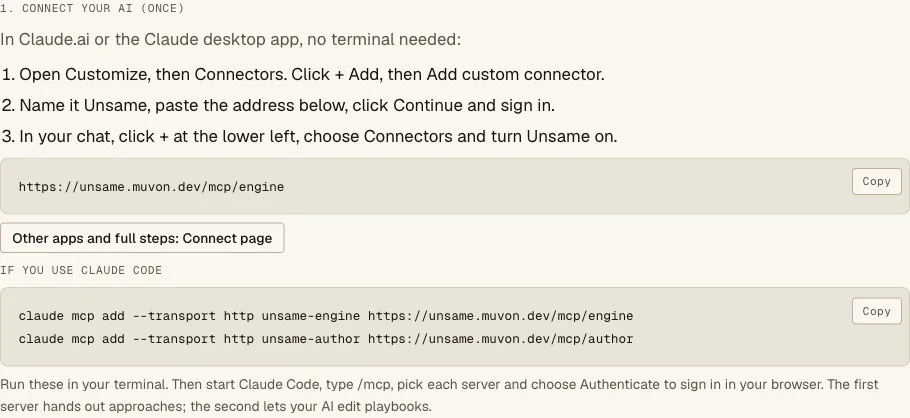
The “Use this goal” panel shows the address to paste and the commands for Claude Code. Step 4 of 6
Give your AI the goal
On your goal page, find “Use this goal”. Type your account name into the “Account or project name” box, for example clayandfire, then copy the prompt below it and paste it into a new chat with your connected AI.
That name is the scope: the label Unsame uses to remember which approaches it already used for that account, so it can avoid repeating a recent approach and form. Use the same scope every time for the same account. Different accounts or projects get different scopes. Only letters, digits and _ : . - are allowed.
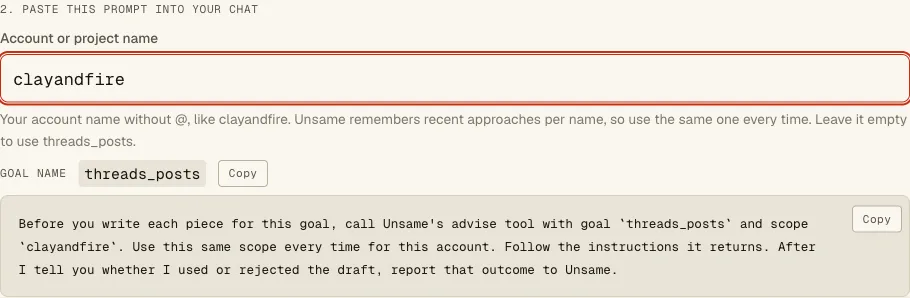
With the account name filled in, the prompt names your goal and your scope. Step 5 of 6
Ask your AI to write
Now ask for what you need in your own words, for example: “Write a Threads post about this: we poured 40 candles yesterday and 12 came out with cracked tops.”
Before it writes, your AI asks Unsame for a protocol. Unsame answers with the kind of situation it recognised, the points your text must respond to, one approach from your playbook, the form (such as length and opening) and your voice and rules. Your AI follows it and writes the post. The first time, your AI app may ask your permission to use the Unsame tool; allow it.
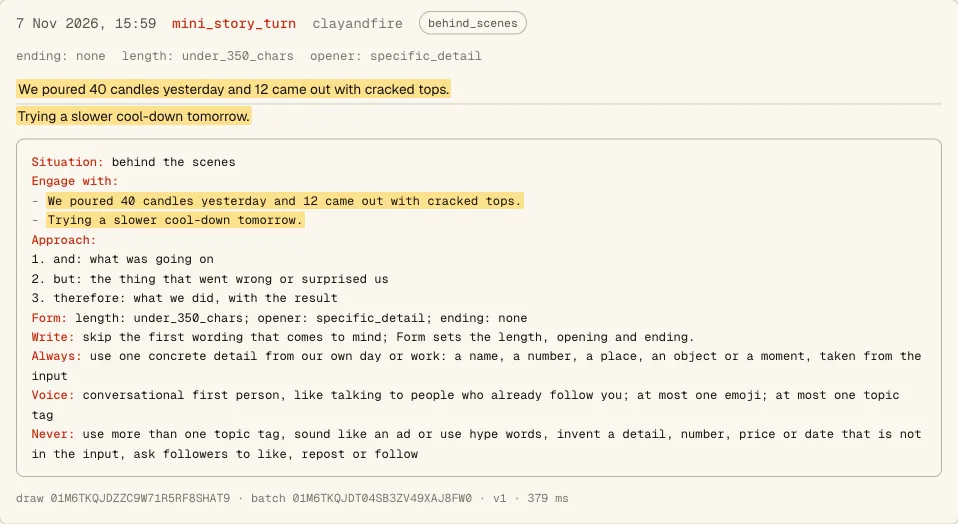
The Draws tab keeps every protocol your AI received, so you can see what it was told. Step 6 of 6
Tell your AI how it went
After you decide what to do with the draft, say so in the chat, for example “I posted it.”, “Too long, I rewrote it.” or “Not using this one.” Your AI sends this to Unsame as a report: a short note about how a draw turned out. Reports are always free.
This is what makes Unsame learn. Approaches that you use go up in the ranking and the ones you reject go down. The Stats tab counts your reports. The next page explains what changes.
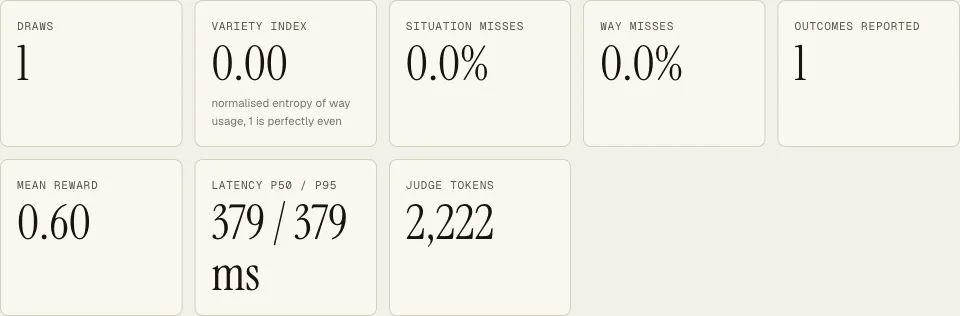
After one report the Stats tab shows 1 outcome reported. Here the post was edited a little.
You are set up
Each time you ask your AI to write, it asks Unsame first, and each report you give makes the next choice a little better informed. See how Unsame gets better over time, look at examples for Threads, X, support and cold outreach, or read the questions people ask first.